Main Menu: All CONNECT features
Welcome to the CONNECT User Guide. Here, you’ll learn about platform features, best practices and customization options for accessing our music consumption data.
See below for summaries of each topic in the Main Menu. Follow the links for in-depth feature guides.
Navigation
Navigate CONNECT using the sidebar or top menu bar on every page. Depending on screen size and resolution, the sidebar menu will appear as an expandable column on the left of the page or remain hidden.
Icons & symbols
Data Controls
Menu
More options
Search
Charts
Analysis
Report Builder
Settings
Data Sources
? Help and Support


Open the main navigation menu from the menu icon at top left or expand the sidebar by clicking > at the bottom left.
Top menu bar: Time Frame, Location and Data Controls
Set your desired time frame and location from the top menu bar. Open the Data Controls menu to see all available filters, view options and breakouts.
Settings: Personalize your default view
Open Settings to set default filters and visualizations for your account. The options you select will apply to every page, every time you open CONNECT, unless you change them again.
Home
When you open CONNECT via your Luminate user portal or app.luminatedata.com, you’ll always land on a page called What’s Trending.
What’s “What’s Trending?”
The landing page displays a snapshot of currently-trending artists and titles in your selected location.
Go to: What’s Trending: Your CONNECT home page
Dashboards
Musical entities (artists, releases and songs) in our database have Dashboards that display key identifying information, data at a glance and performance metrics over time.
Go to: Dashboards
Charts
View Billboard, Luminate and global charts, track historical chart performance and see the data behind the rankings.
Go to: Charts
Analysis
Get a high-level view of the industry or drill down with aggregate music consumption data.
Go to: Analysis
Report Builder
Create, save and export ranked lists, comparisons and other detailed reports.
Go to: Report Builder
Data Sources
Verify daily data deliveries from providers in your location.
Go to: Data Sources
Support
Get in touch with our Client Support team or submit a ticket.
Go to: Client Support: Find answers and get the help you need
Submit a ticket
Click the ? at the bottom of the sidebar menu to search the Knowledge Base or submit a Help ticket.
FAQs and troubleshooting
Before sending an email or submitting a ticket, search for your issue in our user FAQs and troubleshooting guides. Your question may have been answered already!
Go to: All FAQs by topic: Your questions, answered
Go to: Troubleshooting guide: Quick fixes to common problems
Learn
Get more out of CONNECT with our library of educational content, most of which is housed in the Knowledge Base (that's where we are now). Sign in for full access to Knowledge Base articles.
How do I sign in to the Knowledge Base?
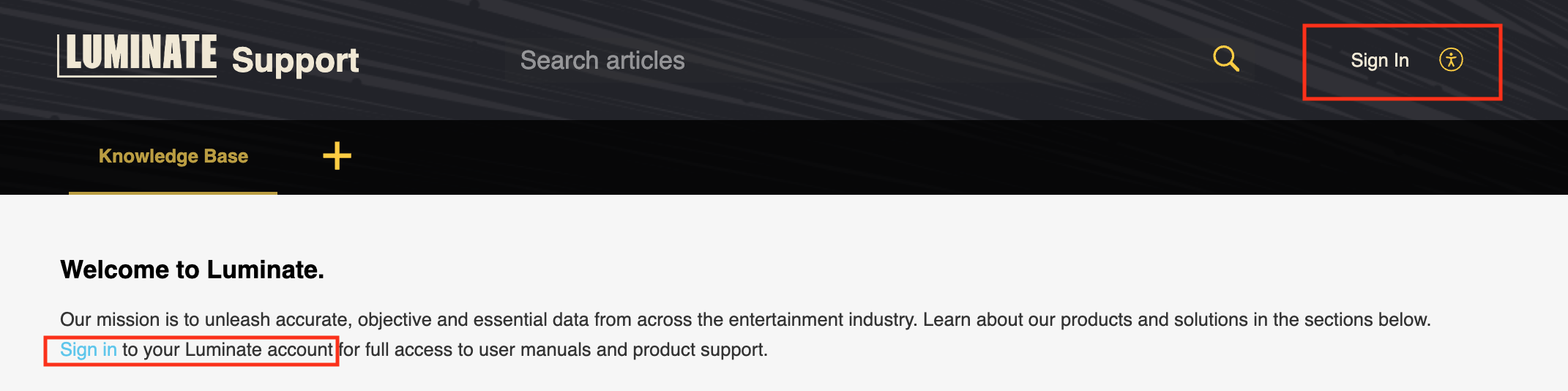
If you subscribe to CONNECT or another Luminate product, visit the permalinked Knowledge Base at support.luminatedata.com.
Log in at top right or from the link in the header text.
Need to see some examples? Browse our index of easy-to-follow tutorials, FAQs, walkthroughs and other “how-to” content.
If you subscribe to CONNECT or another Luminate product, visit the permalinked Knowledge Base at support.luminatedata.com.
Log in at top right or from the link in the header text.